WARDOGS Mechanical Parts: What the Supply Type Is Actually For
Illustrated WARDOGS guide to mechanical parts: what the item card says, where you buy the supply, how it reaches an FOB stockpile and what it pays for.
FAQ
What are mechanical parts used for in WARDOGS?
How do you get mechanical supplies in WARDOGS?
How much are mechanical supplies in WARDOGS?
How many supplies fit in a crate or a pallet?
Do mechanical supplies matter if I never drive vehicles?
Of WARDOGS’ four FOB supply types — build, ammo, fuel, mechanical — the last one is the least understood, because the game never tells you what it does. New players see “MECHANICAL SUPPLIES” in a shop list, assume it is a spare-parts flavour item, and leave it at zero. It is not decoration: it is the resource the repair station runs on, and an FOB with an empty mechanical counter cannot heal a single vehicle.
This page is the item-level answer. The hauling route — how a crate physically travels from the main base to a forward FOB — already lives in our logistics guide; what follows is what the counter is for, what it says on the card, and what it costs.
Source and Verification Card
| Field | Detail |
|---|---|
| Question answered | What mechanical parts do, where you buy them, what consumes them |
| Item class | LOGISTICS // RESOURCE, 0.03 kg per unit, pays Support XP |
| On-screen purpose | “Resource Required to Repair Vehicles” · “Requires FOB Radius to Use” |
| Where it is sold | A supply-capable vehicle’s vendor screen → LOGISTICS tab → CRATES / PALLETS |
| Where it is stored | The FOB stockpile, read through the FOB laptop terminal |
| Screenshots from | Quick Tips (mechanical supplies clip) · Quick Tips (FOB build) · Quick Tips (repair station) |
| Text-only source | Mattzila 999 — 22-minute supplies breakdown. Frames rejected: burned-in captions. Credited for numbers, never shown |
| Not covered here | The delivery loop itself — see the logistics guide |

Quick Tips — How To Get Mechanical Supplies in Wardogs (52-second menu walkthrough)
Every frame below was inspected at full resolution before its caption was written; no logo, face or burned-in text from any source appears on this page.
Step 1: Read the Item Card — It States the Purpose
This is the single screen that settles the question, and it is buried two menus deep.
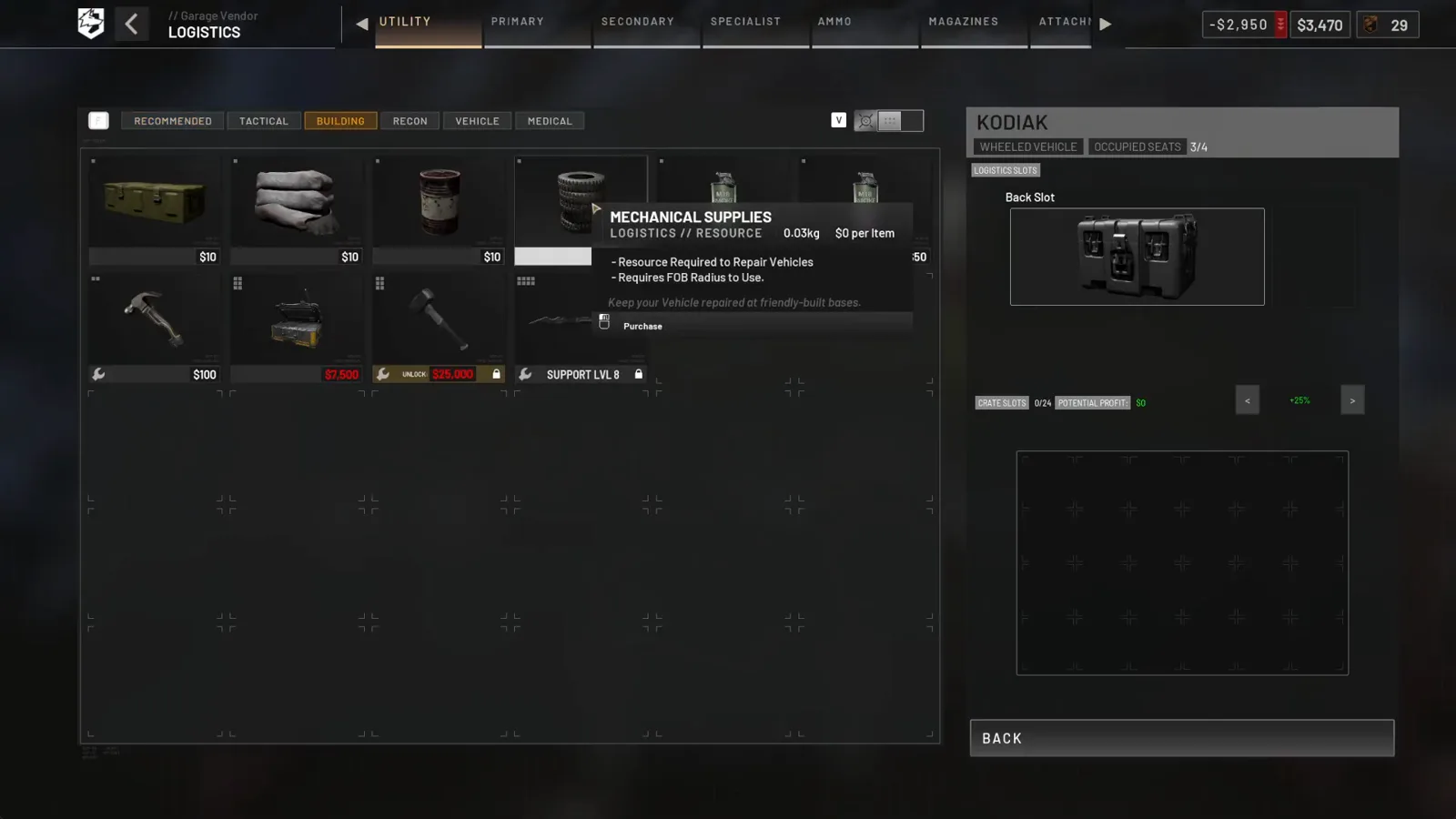 Step 1 (Timestamp: 0:38) — Three lines that answer the whole search query: it is a resource, it is required to repair vehicles, and it only works inside an FOB radius. The $0 per item is the test-range price, not the real one.
Two things worth noticing. First, the card calls it a resource, not an item you ever hold in your hands — you cannot “use” mechanical supplies the way you use a wrench. Second, the 0.03 kg weight is why a backpack run is viable at all: 50 units ride along in one inventory slot.
Step 2: Open the Logistics Tab of a Supply Vehicle
The shop is not the equipment vendor. It is the garage/vendor screen of a vehicle that can carry cargo, opened inside the friendly base radius.
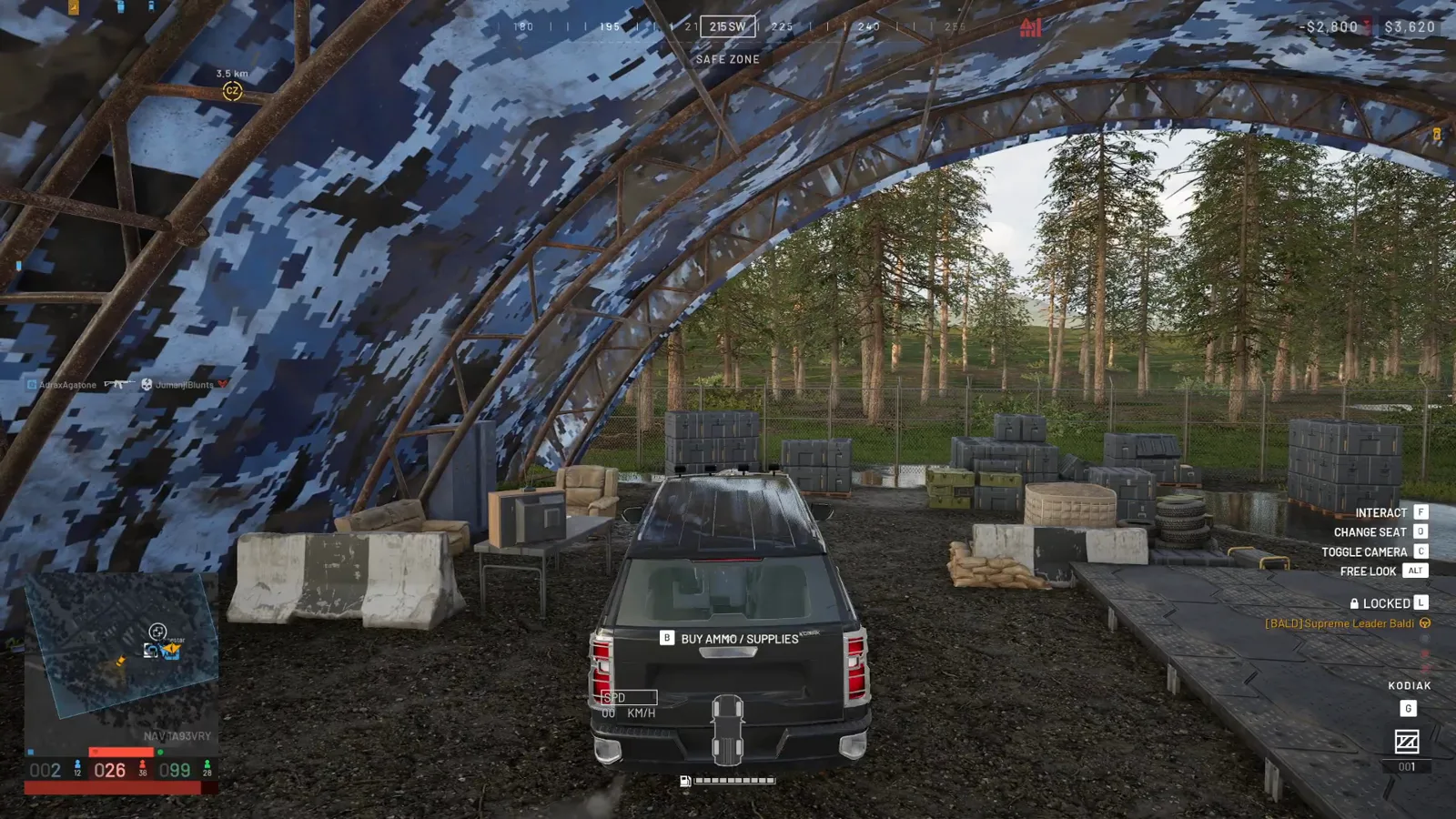 Step 2 (Timestamp: 0:13) — The prompt is on the vehicle, not on a building. SAFE ZONE is printed at the top of the screen: this only works inside the friendly circle.
The same screen carries the vehicle’s own state: ROTARY VEHICLE / seat count / LOCKED with the owner’s name, exactly as on our vehicle purchase page.
Step 3: Buy It as a Crate or as a Pallet
Inside the vendor, the LOGISTICS header splits into CRATES and PALLETS — two different delivery vehicles for the same resource.
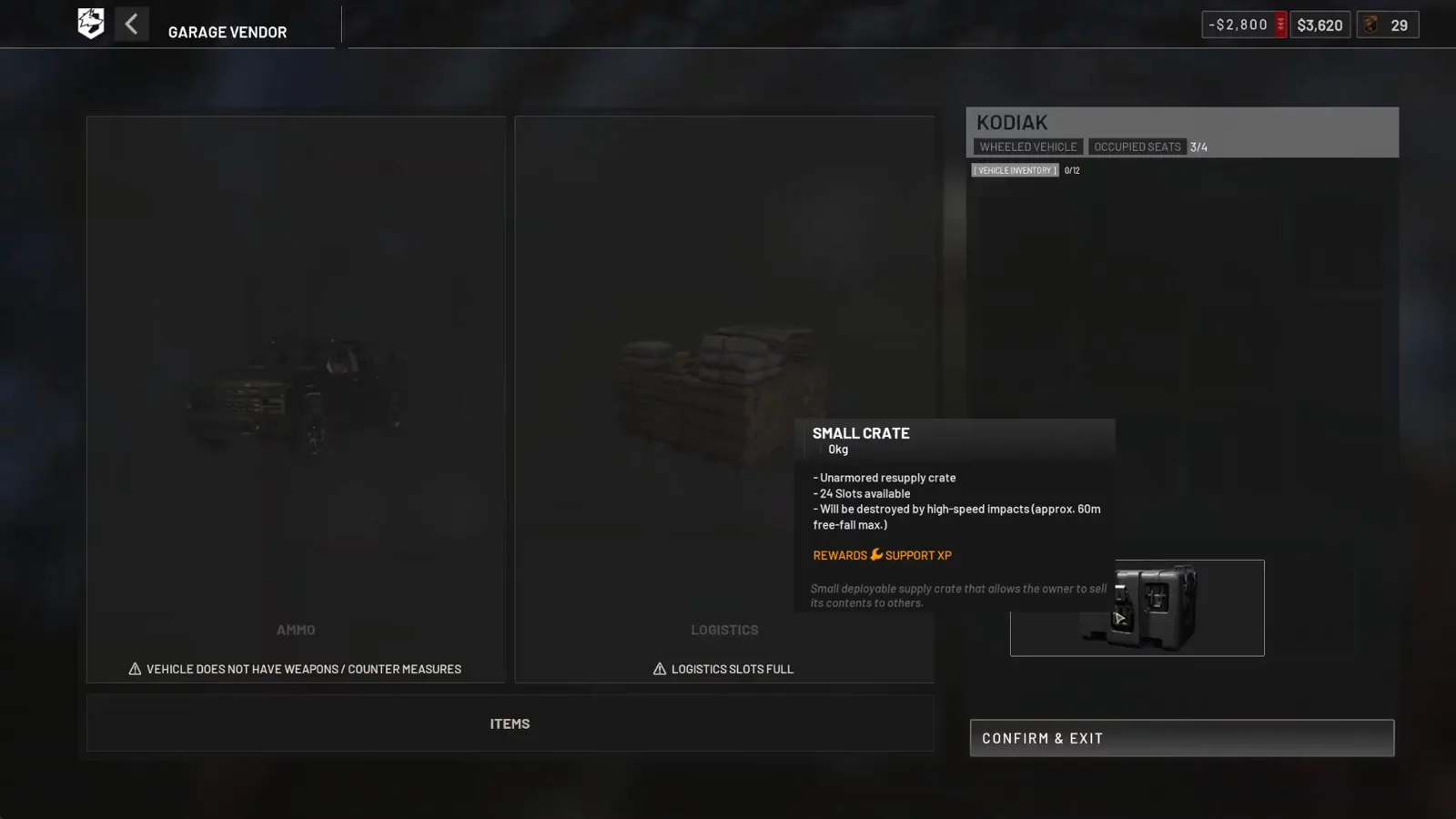 Step 3 (Timestamp: 0:28) — The card states the business model outright: “Small deployable supply crate that allows the owner to sell its contents to others.” 24 slots, unarmored, and it bursts on a hard fall. On the right, the LOGISTICS SLOTS FULL warning — the truck needs room before a crate is worth buying.
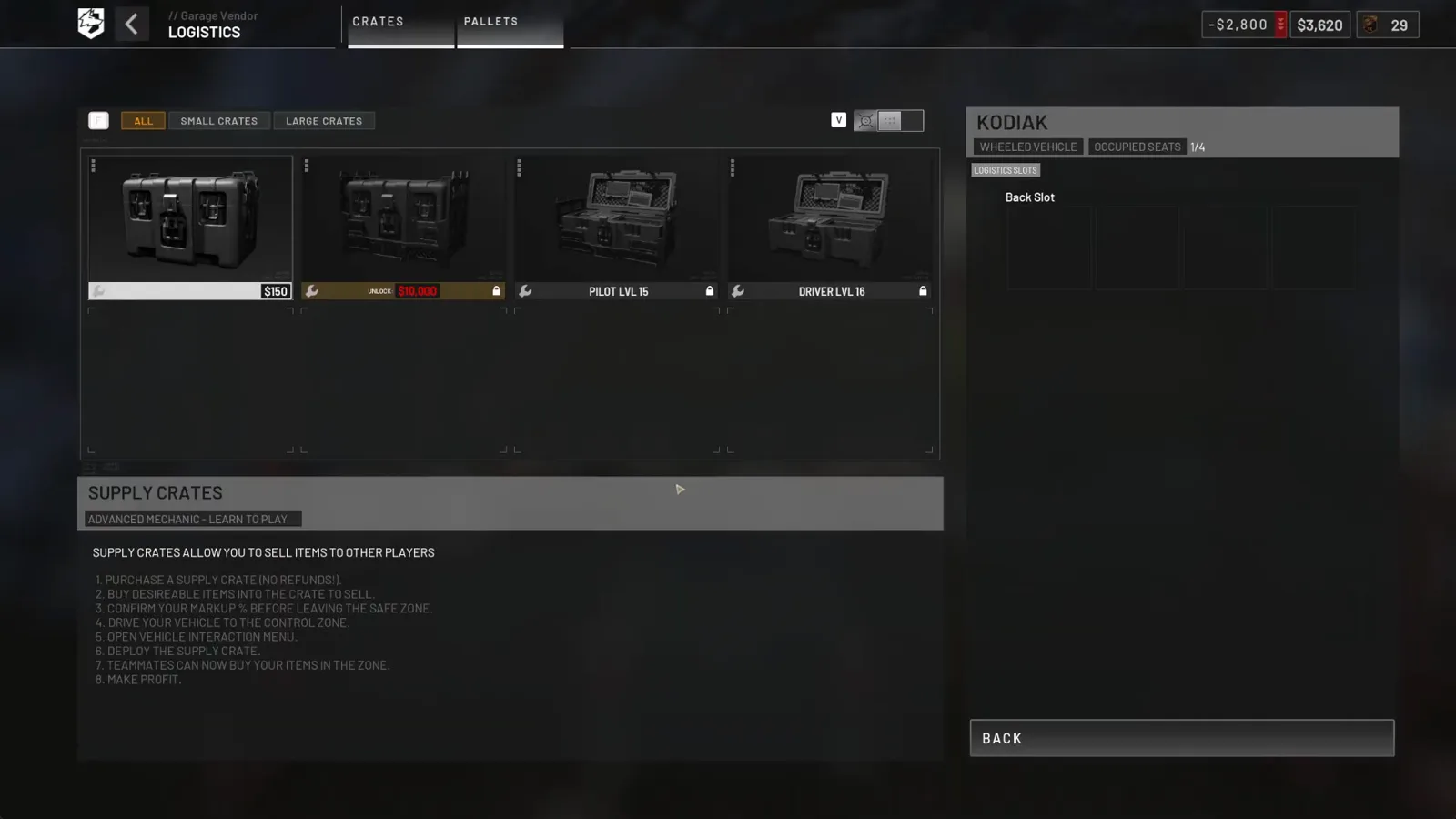 Step 3 (Timestamp: 0:33) — The CRATES sub-tab and its eight-step panel: buy a crate, load stock into it, set a markup, drive to the control zone, deploy, and let your team buy the contents back out of you.
And this is where all of it has to end up:
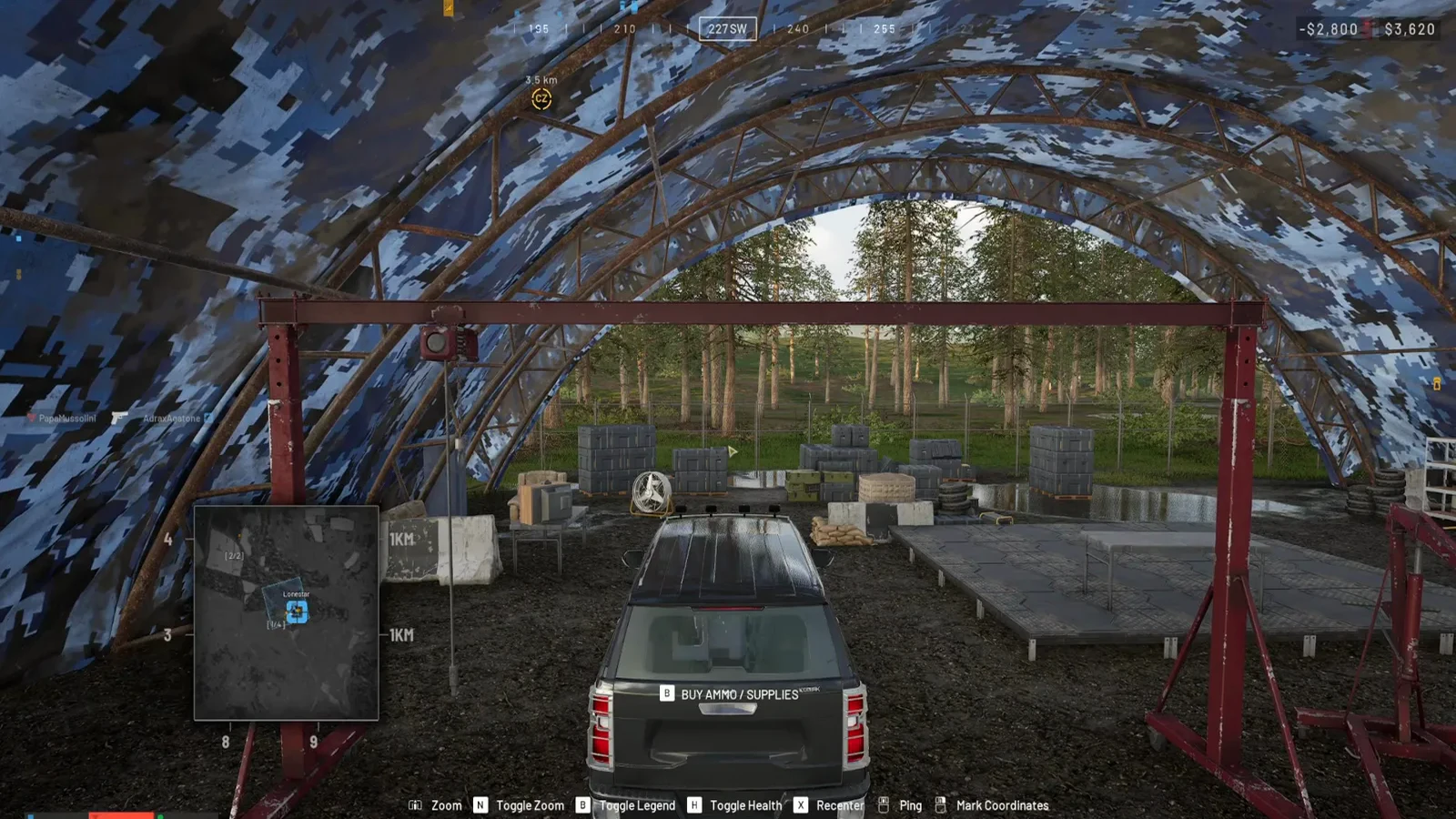 Step 3 (Timestamp: 0:23) — And this is the destination: build supplies stacked under the arch, the truck’s BUY AMMO / SUPPLIES prompt on the tailgate, the FOB marker on the open map. Mechanical supplies do nothing outside this circle.
Watch the crate and pallet tabs (0:23) · Watch the pallet row (0:33)
Step 4: Understand the Gate — Support Level, Not Cash
The same Logistics screen shows why beginners cannot buy everything they see.
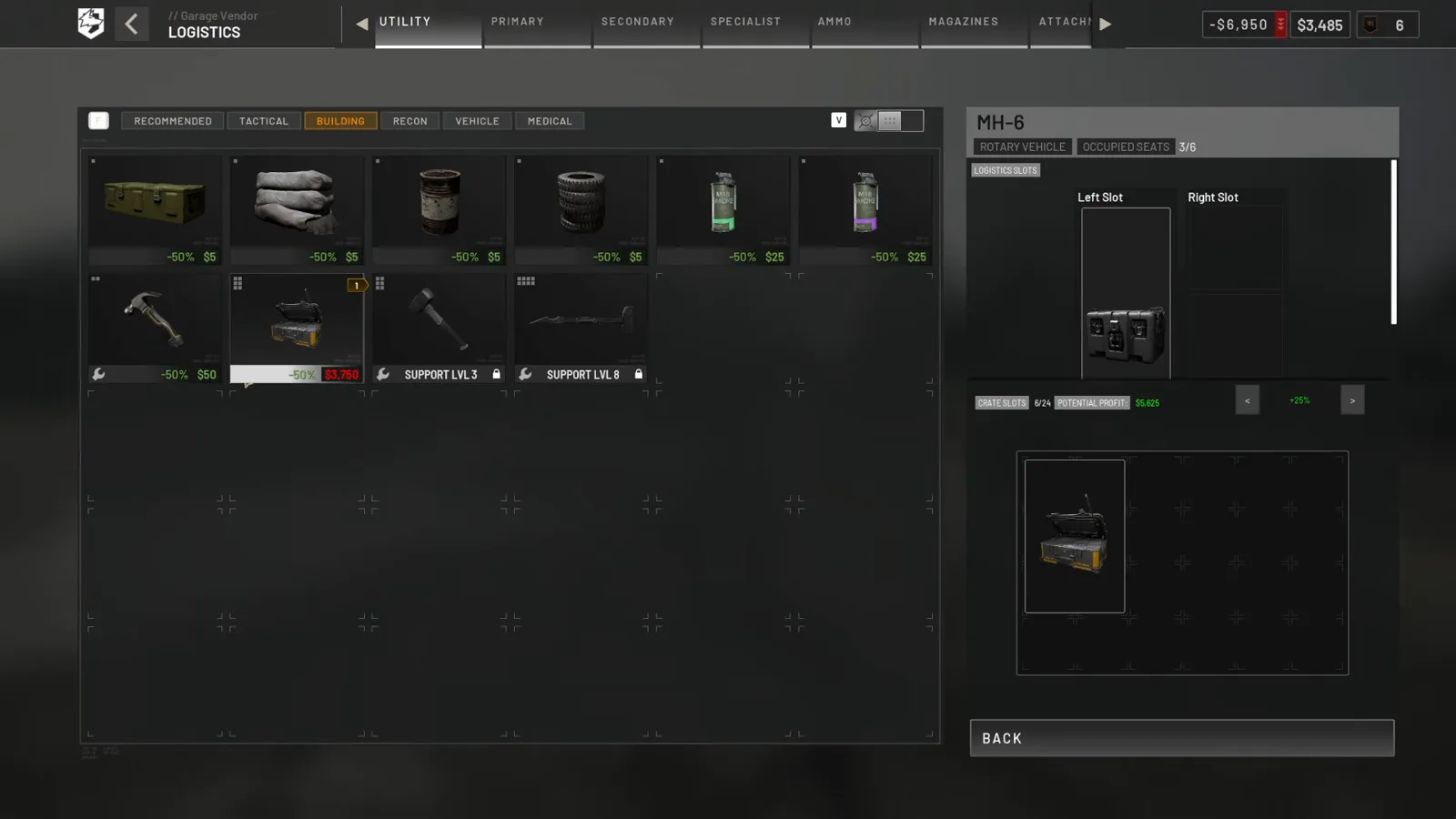 Step 4 (Timestamp: 1:04) — Two locks in one screen: a large hammer behind Support level 3 and another Logistics item behind Support level 8. The cargo panel on the right counts CRATE SLOTS and prints a POTENTIAL PROFIT figure for the load you are configuring.
Filter chips across the top: RECOMMENDED · TACTICAL · BUILDING · RECON · VEHICLE · MEDICAL. Prices in this recording are discounted figures — every card carries a −50% badge, so treat the printed number as half of a list price at best.
Step 5: Get It Into the FOB Stockpile
Buying is the easy half; the resource has to physically arrive.
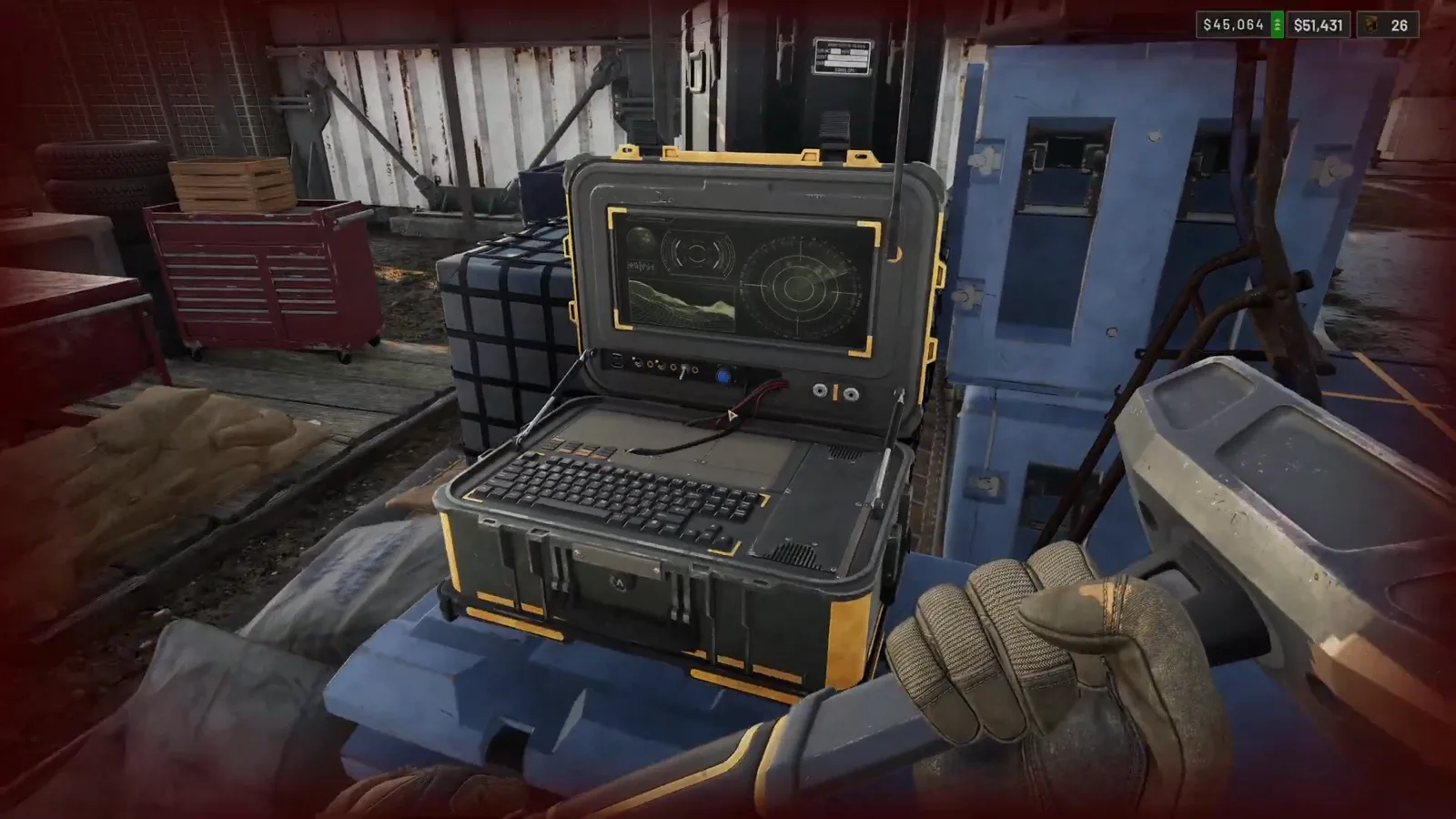 Step 5 (Timestamp: 0:44) — This is the object the whole supply system hangs off. You place it once, and every counter in this article is read from its screen.
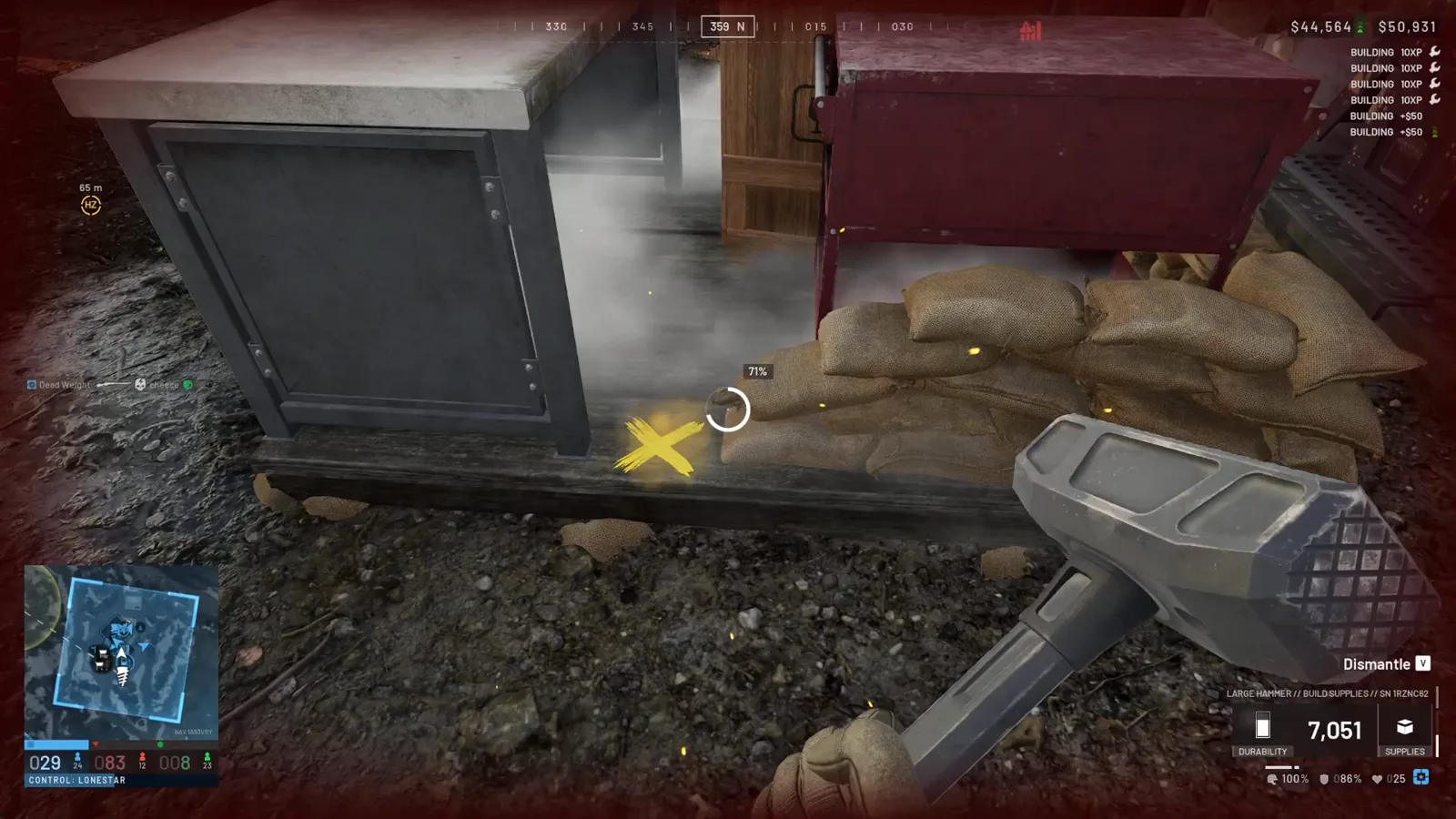 Step 5 (Timestamp: 0:30) — “LARGE HAMMER // BUILDS SUPPLIES // ON BUILDINGS” with a live supply tally: construction spends the build counter, which is why the four supply types are tracked separately.
Delivery is documented step by step in the FOB building guide and the logistics guide. The short version: crates are bought out of by anyone who reaches them, pallets are handed in by holding F inside the circle, and both explode if you drop them too fast or too high.
Step 6: What the Stockpile Buys You
Two sinks, one confirmed and one reported:
| Sink | What we can show | Status |
|---|---|---|
| Vehicle repair at the FOB | The item card’s own text: required to repair vehicles, needs the FOB radius | Confirmed on screen |
| Repair station | The structure that provides the radius, one per FOB | Confirmed on our repair page |
| Stingray drone | 900 mechanical spare parts + $5,000 per launch | Confirmed on our drone walkthrough; reported by our text source |
| Anything else | No other consumer identified in any of our footage | Unconfirmed |
The priority argument from our text source
Mattzila 999 ranks the four supply types for a new FOB: build first (nothing gets built without it), ammo second (mortars, CRAM and Talons drain it), fuel third (oil rigs and refuel stations only), mechanical last — “you only need a small amount to counter artilleries and spawn bits, plus they are expensive.” That is commentary, not a menu, so we print it as Community-reported. It matches our own frames: the repair station is one structure, and the drone is one launcher, so mechanical demand really is lumpy.
Mechanical Supplies Reference
| Item | Value | Status |
|---|---|---|
| Item class | Logistics // resource | Confirmed on screen |
| Purpose | Required to repair vehicles; requires FOB radius | Confirmed on screen |
| Unit weight | 0.03 kg | Confirmed on screen |
| XP reward | Support XP | Confirmed on screen |
| Where bought | Supply vehicle → LOGISTICS → CRATES / PALLETS | Confirmed on screen |
| Crate capacity display | CRATE SLOTS 0/24 empty, 6/24 loaded | Confirmed on screen |
| Markup system | POTENTIAL PROFIT readout on the load panel | Confirmed on screen |
| Unit price | $0 per item in our recording | Unconfirmed (test range) |
| $10 per 50 units | Community-reported | Not on our screens |
| Pallet = 1,800 supplies | Community-reported | Not on our screens |
| Stingray = 900 parts + $5,000 | Confirmed on our drone page | Different recording |
Rules of Thumb
- Stop treating it as a spare-parts prop. The card names a job: vehicle repair.
- Fill it to a floor, not to a cap. The counter exists to keep the repair station and the drone launcher alive — see the vehicles guide for what runs on both.
- Buy crates if you want paying, pallets if you want volume. The economics are worked through in the money-making guide.
- Drop slow and low. Both our crate and pallet tooltips carry the same warning: destroyed by high-speed impacts, roughly 60 km/h.
- Do not trust a $0 you saw in a shop. Neither the ammo page nor this page can price its item, for the same reason.
The mechanical supplies card, the crate and pallet tabs, the small crate tooltip, the Support-level locks, the cargo and profit panel, the FOB laptop and the construction HUD were read off screen in three Quick Tips recordings — the 52-second mechanical supplies clip, the FOB build walkthrough and the repair-station walkthrough. Prices per unit, the $10-for-50 conversion, pallet totals, the four-type priority ranking and the drone’s parts bill come from Mattzila 999’s 22-minute supplies commentary, used as a text source only because that video carries burned-in captions and none of its footage appears here. Early Access rebalances supply costs without warning — re-read the Logistics tab after each patch.
Related videos



Related Articles
guides
WARDOGS Update 0.2.0 Patch Notes: Season 2 Player Guide
WARDOGS Update 0.2.0 (Season 2), announced 2026-10-15: faster XP, softer calibers, lower logistics pay, new guns and vehicles — key old→new numbers and stale guides.
guides
WARDOGS Update Time: Every Patch & Maintenance Window
Every official WARDOGS patch and maintenance window: exact UTC start time, planned downtime, how much notice players got, and what it is in your time zone.
guides
WARDOGS Player Count: Steam Charts, Peak and Is It Dead?
How many people play WARDOGS? Dated Steam readings, why trackers disagree, the 428,666 vs 402,686 peak gap, beta-weekend counts and whether the game is dead.
Was this helpful?
Thanks for the feedback!