WARDOGS Elytra Anti-Cheat Errors and Launch Failures: Fixes
Fixes for WARDOGS Elytra anti-cheat errors and launch failures: verify files, repair the anti-cheat component, firewall and antivirus exceptions, drivers.
FAQ
Why does WARDOGS keep failing at launch?
Should I disable my antivirus to get the game running?
What is the "session prime failed" error?
Will reinstalling the game fix Elytra anti-cheat errors?
Is WARDOGS using Easy Anti-Cheat? Why does this page say Elytra?
What is WARDOGS "error 1019"? Is it WD-L019?
Launch week is rough for every competitive release, and the pattern is nearly always the same: the game itself installed fine, but the anti-cheat layer refuses to cooperate. WARDOGS runs Elytra, a kernel-level anti-cheat, and most launch failures — the game closing instantly, hanging before the menu, or erroring out before the server browser — trace back to that layer being missing, outdated, or blocked rather than to broken game files. This page is a fix ladder: start at the top, work down, and stop as soon as the game launches. Every step here is standard, safe PC maintenance — nothing here voids anything or puts your account at risk.
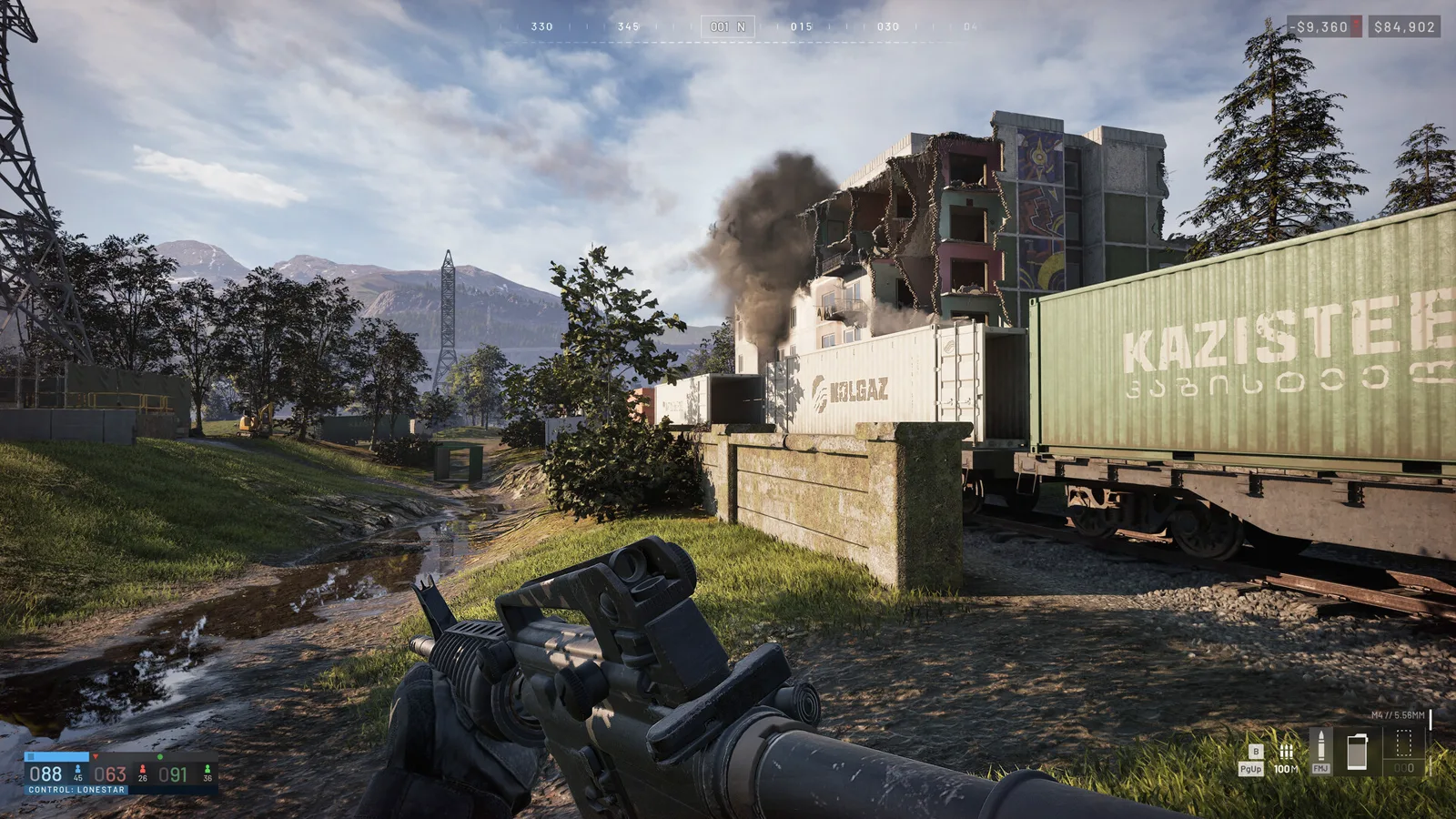
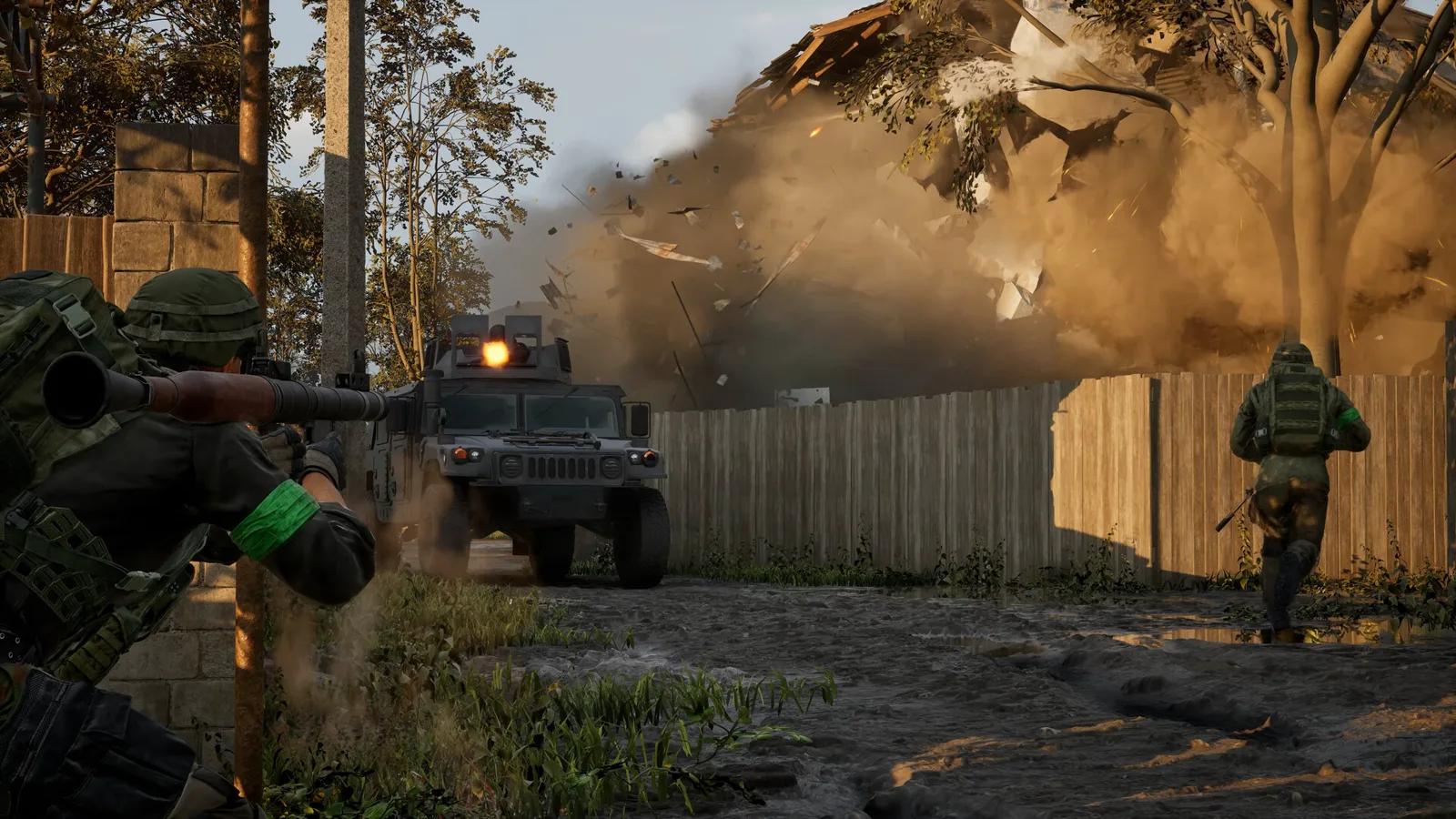 The goal of every fix on this page: a normal, boring launch into a fight like this one.
Which Anti-Cheat Does WARDOGS Actually Use?
Confirmed: the WARDOGS Steam store page (checked 2026-09-14) lists the game under “Uses Kernel Level Anti-Cheat” with the anti-cheat name Elytra. That is the layer this page is about, and every “repair the anti-cheat” instruction below means Elytra.
Why you may have read otherwise: some third-party coverage during the beta period described the anti-cheat as Easy Anti-Cheat. We are recording that as a discrepancy between beta-era third-party wording and the store registration that ships with Early Access, and we follow the store page. If a search engine sent you here looking for “WARDOGS easy anti cheat error” or you bookmarked a beta-era guide that said EAC, nothing was wasted: the diagnosis and the repair ladder are identical for either layer, because both install a driver-level service that security software can block and Steam can re-download.
What we are not going to tell you: when or why the name in the store listing differs from beta coverage. The developer has not said, and there is no public changelog for this layer. Bulkhead’s 2026-09-08 announcement “The 11th Reason NOT To Buy WARDOGS” states the reason for the silence directly: “There’s a rule in game development: you don’t talk about anti-cheat.” Expect thin detail on Elytra specifically — which is why the ladder below is standard, verifiable PC repair rather than Elytra internals.
What the Launch Error Looks Like
The signature launch-window failure is easy to recognize: a dialog titled Crash Report Handler reading “The application has encountered an unexpected error”, with a crash-log path pointing into the game’s AppData folder. It appears seconds after clicking Play, before any menu loads.
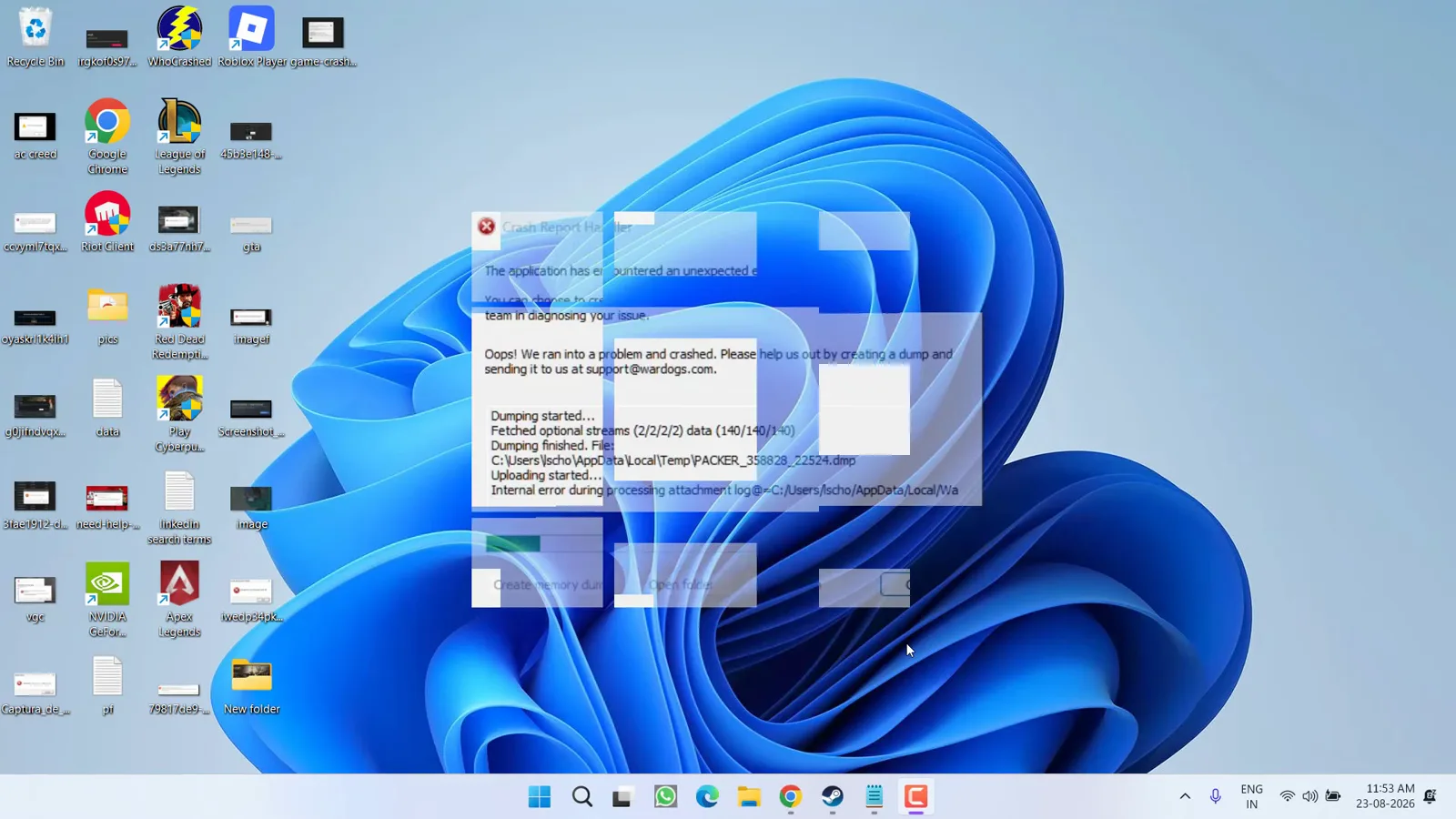 The real dialog, captured by Lotus Geek during the launch window. Community-reported — we will re-verify the exact wording against a live build.
If that is the error on your screen, work the ladder below. The steps are ordered by how often they resolve it, starting with the two-minute basics.
Before You Start: The Two-Minute Basics
Rule out the boring causes first, because they account for a real share of “broken” launches:
- Restart the PC. Not the game, not Steam — the PC. A kernel-level anti-cheat installs a driver-level service, and a reboot clears half of its stale states.
- Restart Steam so it re-detects the installation.
- Check the official channels (the developer Bulkhead and publisher Team17) for server status. During launch windows and early-access patches, the problem is sometimes on the server side, and no local fix will help.
Still failing? Work the ladder below in order. The steps are ordered from fastest and most likely to slowest and least likely.
Fix 1: Verify Game Files on Steam
Corrupted or partially downloaded files — including the anti-cheat binaries Steam ships alongside the game — are the single most common local cause of launch failures.
- Open your Steam Library and right-click the game.
- Choose Properties, then the Installed Files tab.
- Click Verify integrity of game files and let it finish completely.
Steam will re-download anything missing or damaged. If the game launches now, you are done; if not, the anti-cheat service itself is the next suspect.
Fix 2: Repair the Elytra Anti-Cheat Component
The anti-cheat installs as its own small service, separate from the game files. It can be missing, half-installed, or outdated even when the game itself verifies clean.
One honest limitation before you start: Easy Anti-Cheat has a public setup tool and a support site you can point at a game folder. Elytra has no public standalone installer or repair tool that we can verify, so there is no official “repair” button to press for this layer. Work the component through Steam instead:
- Verify integrity of game files again (Fix 1). This is the supported path by which the anti-cheat binaries get re-downloaded.
- Inspect the install folder — right-click the game → Manage → Browse, then look for the anti-cheat subfolder. Community-reported practice from the launch window: if that folder is absent or looks half-written, delete it and run the file verification a second time so Steam re-creates it. We have not verified Elytra’s exact folder layout, and we cannot confirm that deleting it is harmless on every build — treat this as community-reported and only reach for it after a plain verification has already failed.
- Reboot the PC before launching. The service loads at the driver level, and the reboot is part of the fix, not a formality.
Do not go looking for an “Elytra installer” on file-sharing sites or Discord — there is no such download, and a search for one is exactly where launch-week malware finds its audience (see the warning at the bottom of this page).
Fix 3: Allow the Game Through Your Firewall and Antivirus
Anti-cheat software communicates with servers and loads at a privileged level, which is exactly the behavior security software is tuned to distrust. False positives here cause silent launch failures.
- Windows Defender Firewall: add allow rules for the game executable and the anti-cheat service executable (both live in the game’s install folder or its anti-cheat subfolder).
- Third-party antivirus: add an exclusion for the game’s install folder. Look in your antivirus quarantine or logs first — if it ate an anti-cheat file during installation, restore it and exclude the folder so it does not happen again.
- If you use a VPN, turn it off for a test launch. VPNs interfere with anti-cheat connections more often than any local software.
Do not disable your antivirus outright to play. Add the exception instead — it is faster, safer, and permanent.
One adjacent warning while we are on the subject of security software: if your antivirus has ever flagged a file you downloaded because a video or forum post told you to “disable protection to run it,” read our breakdown of the cheat-download scam wave — that instruction pattern is exactly how cheat malware gets players to uninstall their own protection.
Fix 4: Update GPU Drivers and Windows
An outdated GPU driver will not usually trigger an anti-cheat error, but it produces a family of crash-on-launch symptoms that players reasonably misread as anti-cheat problems.
- Install the latest driver for your card from NVIDIA, AMD, or Intel directly — not through a generic updater.
- Install pending Windows updates and reboot. The anti-cheat kernel service depends on OS components that cumulative updates patch.
- If the game worked before and broke after a driver update, use the vendor’s clean-install option to reset the display driver stack. For severe in-game frame pacing stutters after driver updates, consult our low FPS and stuttering fix guide.
- Check Hardware-accelerated GPU scheduling (HAGS) — community-reported crash fix from launch-window troubleshooting videos: Settings → System → Display → Graphics → Default graphics settings, and toggle HAGS to the opposite of whatever it is now, then reboot. Flipping this toggle has resolved the unexpected-error crash for some players; it is a reversible setting, so test both ways.
- Community-reported: Core isolation (Memory Integrity) conflicts. Launch-window troubleshooting videos also tie the unexpected-error crash to Windows Security → Device security → Core isolation. Be aware this is a real security tradeoff for your entire PC, not a casual toggle — kernel-level anti-cheats are known to clash with Memory Integrity on some setups, but treat disabling it as a last-rung experiment after the rest of the ladder, and flip it back afterwards to test.
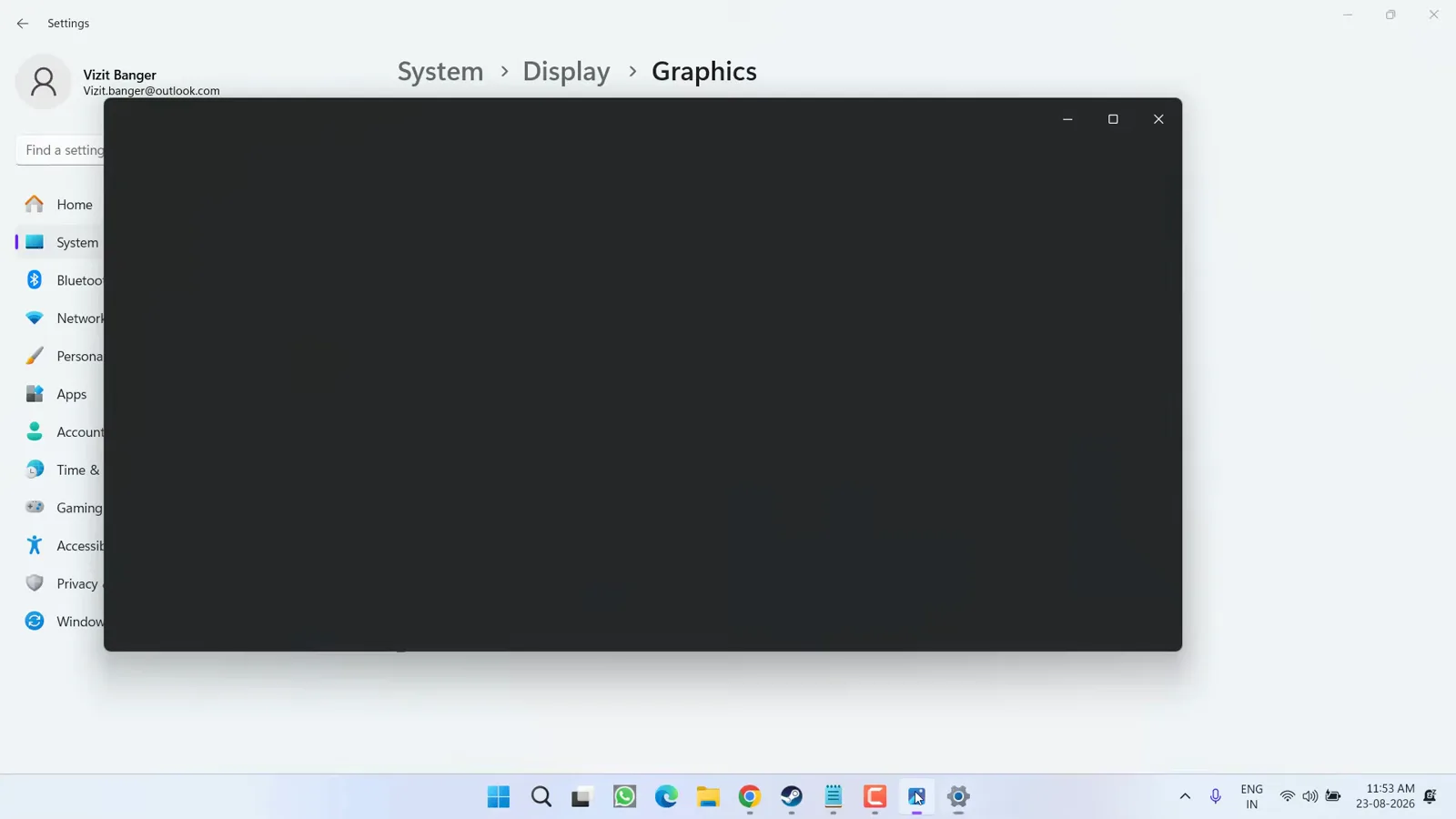 The HAGS toggle in Windows graphics settings — flipping it is a reversible, community-reported fix for the unexpected-error crash.
Fix 5: Run the Launcher as Administrator
Permission problems block the anti-cheat service from registering. Right-click Steam (or the game shortcut) and choose Run as administrator for one test launch. If that works, you can make the fix durable by adjusting the compatibility settings on the executable rather than elevating every session — and note that the underlying cause is usually a permissions quirk from installing to a protected folder, not anything wrong with your PC.
Fix 6: The Clean Reinstall, In the Right Order
If everything above failed, do the full reset — but the order matters, because reinstalling the game over a broken anti-cheat state reproduces the same error:
- Uninstall the game through Steam.
- Clear the anti-cheat component the way described in Fix 2 — there is no standalone uninstaller to run for Elytra, so this means removing its leftover folder in the install directory and letting Steam re-create it.
- Delete the game’s leftover install folder if anything remains.
- Reboot.
- Reinstall through Steam, run the file verification once, and reboot again before the first launch.
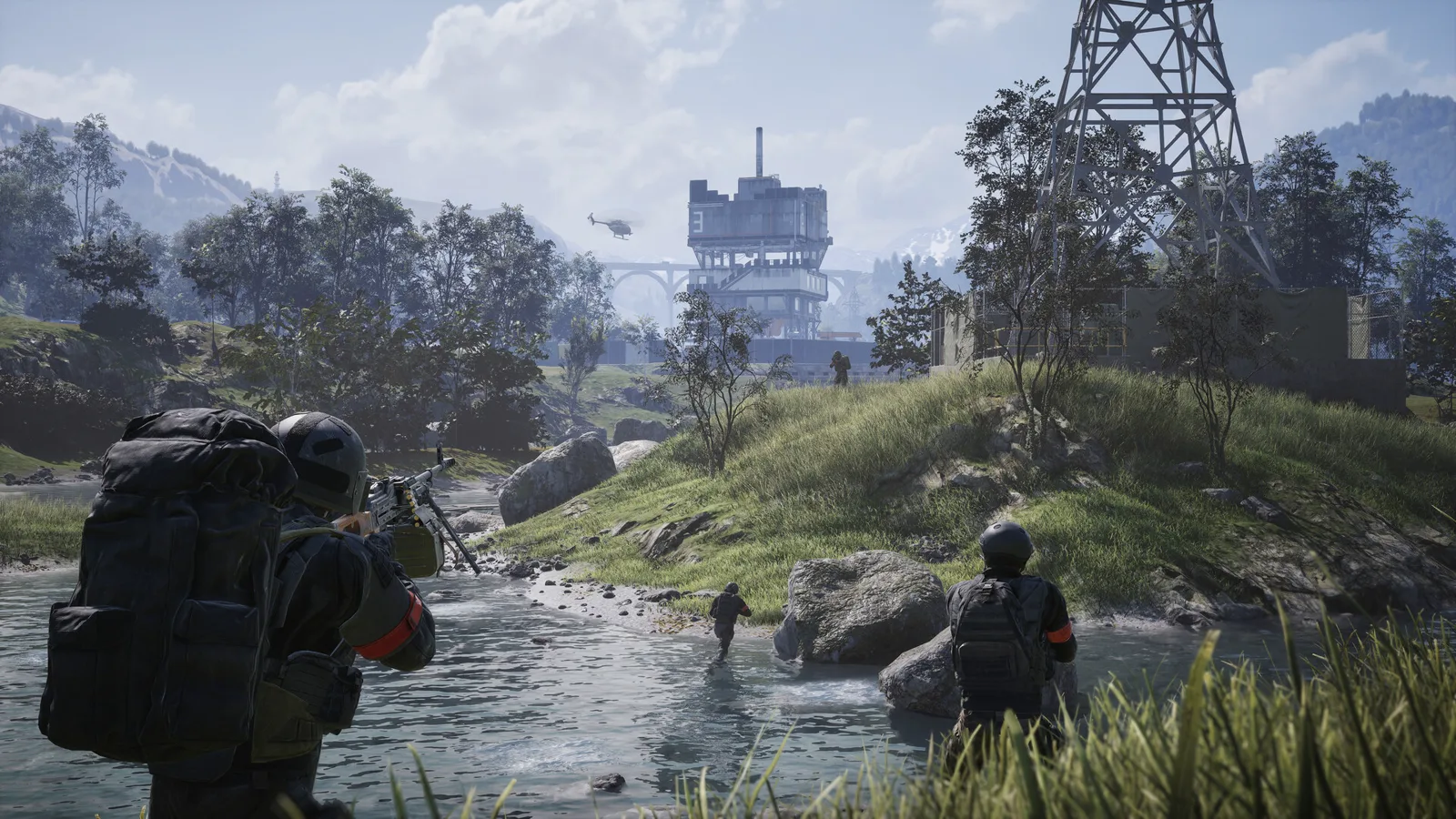 A clean reinstall leaves your account and its bank intact — the economy lives with your account, not the local files.
The “Session Prime Failed” Error
Community players have reported an error reading “session prime failed” when attempting to get into matches during the Early Access launch period. We are labeling this carefully: it is a community-reported issue from the early-access era, not a documented error with an official fix, and details may change as patches land. The reports point toward server-session and connectivity trouble rather than broken local files — meaning the file-verification ladder above may not touch it.
The reasonable first steps, based on how session errors behave generally:
- Retry after a few minutes. Session priming depends on server capacity, and launch-window congestion produces transient failures that resolve on their own.
- Check official status channels — Bulkhead and Team17 announcements — before assuming the problem is yours.
- Test your general connectivity: try a wired connection instead of Wi-Fi for one session, and flush your DNS (
ipconfig /flushdnsin a command prompt) to rule out stale resolution. - Queue at off-peak hours while the launch window settles.
 Session errors are the last hurdle: the game runs, and what you are fighting now is server capacity.
We will update this section as fixes are confirmed. If you are hitting errors during installation itself rather than matchmaking, the ladder at the top of this page still applies.
When to Stop Troubleshooting and Open a Ticket
If you have completed the full ladder — file verification, anti-cheat repair, firewall exceptions, drivers, clean reinstall — and the game still will not launch, stop. File a support ticket with Team17 support and include: your system specs, the exact error text, and when it occurs in the startup sequence. Launch-week issues that survive the standard ladder are usually specific enough that support needs the details, and Early Access means the developers are actively collecting exactly these reports.
Once you are in the game, make the next hour count: run through the PC settings priorities before your first session, and read the beginner’s guide to the economy so your first deaths are cheap ones. More troubleshooting and setup coverage lives in the fixes index as the site grows.
One warning before you go hunting for faster help: launch-week frustration is exactly when “WARDOGS fixer” EXE files start circulating on Discord and file-sharing sites. Running unknown executables is how accounts get stolen, not how crashes get fixed — see our cheats-and-malware warning for the pattern. Official fixes arrive through Steam, Bulkhead, and Team17 channels.
Anti-cheat identity: WARDOGS Steam store page (appid 1867240), “Uses Kernel Level Anti-Cheat — Elytra”, checked 2026-09-14; developer announcement “The 11th Reason NOT To Buy WARDOGS”, 2026-09-08. Screenshots © Bulkhead / Team17 (Steam store page). Crash-dialog and Windows-settings frames: Lotus Geek on YouTube.
Related Articles
guides
WARDOGS Update 0.2.0 Patch Notes: Season 2 Player Guide
WARDOGS Update 0.2.0 (Season 2), announced 2026-10-15: faster XP, softer calibers, lower logistics pay, new guns and vehicles — key old→new numbers and stale guides.
guides
WARDOGS Update Time: Every Patch & Maintenance Window
Every official WARDOGS patch and maintenance window: exact UTC start time, planned downtime, how much notice players got, and what it is in your time zone.
guides
WARDOGS Player Count: Steam Charts, Peak and Is It Dead?
How many people play WARDOGS? Dated Steam readings, why trackers disagree, the 428,666 vs 402,686 peak gap, beta-weekend counts and whether the game is dead.
Was this helpful?
Thanks for the feedback!