WARDOGS Stuck on Loading Screen Fix: Infinite Loading & Black Screen
Fix WARDOGS stuck on loading screen, infinite logging in, and black screen on launch. Work this 5-step ladder from process cleanup to shader cache reset.
FAQ
Why is WARDOGS stuck on the loading screen forever?
What is the difference between a black loading screen and "Logging In" freeze?
Does clearing the DirectX shader cache fix WARDOGS infinite loading?
Is infinite loading a known Patch 0.11 issue?
Should I delete my entire WARDOGS install folder to fix a loading hang?
You clicked Play, the WARDOGS logo appeared, and then nothing—an infinite loading spinner, a black screen that never reaches the menu, or a Logging In loop that outlasts your patience. That is a different failure family from a crash dialog before launch, a server queue that never moves, or FPS stutter inside a match. This page owns client-side loading and login hangs only: the stretch between Steam and a stable main menu, plus the Joining Server / Logging In freeze when you pick a match.
Scope before you start:
- Game crashes or closes before any menu → Elytra anti-cheat and launch error fixes.
- Menu loads but queue, ping, or mid-match disconnects → connection and server troubleshooting.
- Server browser empty after Patch 0.11 → server browser fixes.
- You are in a match but stuttering → low FPS and stuttering guide.
- The loading text stops at “Fetching game data” and never advances → the dedicated fetching game data fixes.
- The hang or crash happens only inside the tutorial, or an Unexpected Error appears right after it and then on every launch → tutorial loading and post-tutorial crash fixes.
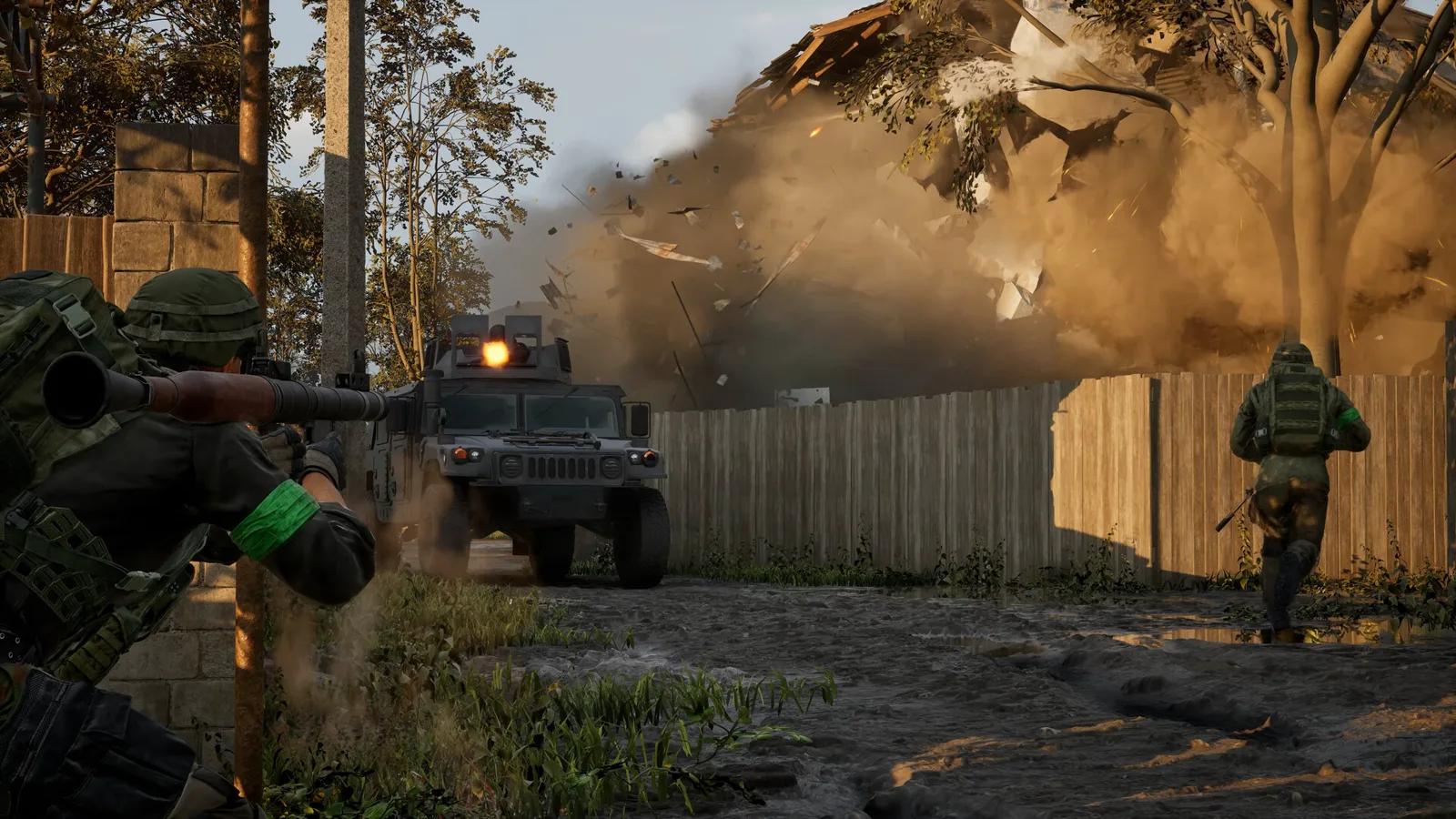 The goal: get past loading into a normal session like this—not to tune performance mid-fight (that is a different guide).
Which Loading Hang Are You Seeing?
Match your screen to a symptom bucket. The fix ladder below works for all three, but Step 2 matters most for A, Step 3 for B and C, and Step 4 for multi-monitor black screens.
| Symptom | What you see | Likely cause (label) |
|---|---|---|
| A — Black / logo loading freeze | Black screen or studio logo loop before main menu; GPU fans spin, disk activity stops | Shader compilation freeze, corrupted DirectX 12 cache (Community-reported) |
| B — Backend login loop | Main menu visible but stuck on Logging In… or Connecting to Backend Services | Steam Cloud conflict, IPv6 handshake stall (Community-reported) |
| C — Join / deploy spinner | Joining Server, Logging In, or 100% load bar that never finishes | Asset streaming timeout, corrupted local match cache (Community-reported) |
Fix Ladder 1: Kill Zombie Processes and Restart Steam
The fastest fix—and the one most players skip—is clearing leftover processes from a crash or force-quit.
- Close WARDOGS from Task Manager if it is still listed (including background launcher children).
- End any Elytra or anti-cheat service tasks still running (Community-reported naming varies by build; look for game-adjacent services in Details).
- Exit Steam completely (System tray → Steam → Exit—not just closing the window).
- Wait ten seconds, relaunch Steam, then Play.
Why this works: an abnormal exit can leave lock files and ports held open. The next launch waits on resources that never release, which surfaces as an infinite loading screen rather than a clean error dialog. If you never get past Step 1 because the game crashes instantly, switch to the Elytra launch ladder instead.
Fix Ladder 2: Clear DirectX Shader Cache and GPU DxCache
Symptom A—black screen or logo hang—is the classic signature of a shader compilation deadlock or corrupted DirectX 12 pipeline cache after a driver update or Season 1 patch.
Windows DirectX Shader Cache:
- Close WARDOGS and Steam.
- Press
Win + S, open Disk Cleanup, select your system drive. - Check DirectX Shader Cache (uncheck other categories if you want to keep them).
- Run cleanup, then reboot.
Vendor DxCache folders (Community-reported paths):
- NVIDIA:
%LOCALAPPDATA%\NVIDIA\DXCacheand%LOCALAPPDATA%\NVIDIA\GLCache - AMD:
%LOCALAPPDATA%\AMD\DxCache
Delete the contents (not the parent folder if Windows locks it—delete inner files after reboot). The low FPS guide’s shader section covers the same purge for in-match stutter; here the target is boot-time hangs.
Fix Ladder 3: Reset AppData Config and DerivedDataCache
Corrupted local config under %LOCALAPPDATA%\Wardogs is a recurring Community-reported cause of login loops (Symptom B) and join-at-100% freezes (Symptom C).
- Close the game and Steam.
- Open
%LOCALAPPDATA%\Wardogs\Saved\Configin File Explorer. - Back up your keybind file if you customised controls (copy
*.inikeybind sections to a desktop folder). - Delete the contents of
Saved\Config(or rename the folder toConfig_backupfor a reversible test). - Delete
DerivedDataCacheif present under%LOCALAPPDATA%\Wardogs(Community-reported—Unreal-derived titles use this for streamed asset indices; exact folder layout may vary by build). - Relaunch through Steam so the client recreates defaults.
Do not wipe %LOCALAPPDATA%\Wardogs entirely on first try—you lose more than necessary. Config-only reset is the surgical step.
Optional: disable Steam Cloud sync for one test (Symptom B)
If you are stuck on Logging In with a spinning icon, Community-reported fixes include a one-session Steam Cloud test: Steam Library → WARDOGS → Properties → General → uncheck Keep games saves in the Steam Cloud, launch once, then re-enable after a successful login. This rules out a cloud manifest conflict without permanent data loss—your saves live on Steam’s side when cloud is on.
Fix Ladder 4: Disable Fullscreen Optimizations and Use Borderless Window
Community-reported black-screen hangs on multi-monitor, HDR, or ultrawide setups often trace to fullscreen compositor conflicts—not broken game files.
Launch options (Steam → Properties → Launch Options):
-windowed -noborderOr disable Fullscreen Optimizations on the executable:
- Right-click
Wardogs.exe→ Properties → Compatibility. - Check Disable fullscreen optimizations.
- Apply, then test one launch.
Borderless windowed mode avoids some DXGI flip failures that present as a permanent black loading frame. For in-game graphics baseline after you reach the menu, see best PC settings—especially if you later hit stutter rather than load hangs.
Fix Ladder 5: Verify Steam Files and Elytra Service State
When local caches and config are clean but loading still loops:
- Verify integrity of game files (Library → WARDOGS → Properties → Installed Files). Steam re-downloads missing binaries including anti-cheat components.
- Reboot before the next launch so Elytra’s kernel service registers cleanly—the same reboot step documented in our Elytra launch fixes.
- Confirm Elytra is not blocked by firewall or antivirus during the login phase, not just at first boot.
If verification completes and Symptom C persists only when joining one server, test a different region or Official matchmaking queue—persistent join hangs on every server may still be connection-side, but a load bar that never clears after 100% is usually local cache (Step 3) first.
When to Stop and Wait for a Patch
If you have run all five steps—including shader purge, config reset, borderless launch, and file verification—and the client still never reaches a stable menu, file a ticket with Team17 support and attach: symptom letter (A/B/C), whether the hang started after a driver or Patch 0.11 update, and your GPU model. Confirmed studio direction is toward clearer early-failure messaging; your report feeds the same startup stability track Season 1 already touched.
Do not download “loading fix” EXEs from Discord or YouTube—launch-week malware trades on exactly this frustration. Stick to Steam, official channels, and the ladders linked above.
Sources: Bulkhead Season 1 changelog (startup reliability line, September 9, 2026); Patch 0.11 server-browser announcement (September 12–14, 2026). Shader-cache and AppData paths labeled Community-reported unless otherwise noted.
Related Articles
guides
WARDOGS Update 0.2.0 Patch Notes: Season 2 Player Guide
WARDOGS Update 0.2.0 (Season 2), announced 2026-10-15: faster XP, softer calibers, lower logistics pay, new guns and vehicles — key old→new numbers and stale guides.
guides
WARDOGS Update Time: Every Patch & Maintenance Window
Every official WARDOGS patch and maintenance window: exact UTC start time, planned downtime, how much notice players got, and what it is in your time zone.
guides
WARDOGS Player Count: Steam Charts, Peak and Is It Dead?
How many people play WARDOGS? Dated Steam readings, why trackers disagree, the 428,666 vs 402,686 peak gap, beta-weekend counts and whether the game is dead.
Was this helpful?
Thanks for the feedback!